

It was great fun to conduct a Workshop at WordCamp Asia contributor day. Roughly 100 students were in the class and it was a great interactive session. I also know that there were quite a few of you who didn’t get to join us because there wasn’t enough room.
Birgit Pauli-Haack workshop on the block editor and full-site editing was a highlight of the entire event. Her depth of knowledge and infectious enthusiasm for the future of WordPress left me inspired and ready to dive deeper. – Kinjal Dwivedi
If you attended the Block Theme Development workshop at WordCamp Asia 2026 in Mumbai and want to revisit the exercises, or if you couldn’t make it but want to work through it on your own, the complete workshop bundle is available on GitHub. Everything you need to follow along is included:
- the reference theme,
- demo content with media,
- step-by-step instructions to start your theme, and
- a blueprint to set up a local site with WordPress Studio or with WordPress Playground.
You can get started within minutes.
If you have used the Site Editor to customize a theme but have not yet built one from scratch, this workshop is a great next step. The exercises stay entirely within the visual editor. By the end, you will have a working portfolio theme and a solid understanding of how template parts, patterns, global styles, and custom templates fit together. Using the Create Block theme plugin, you can save all your changes in the new theme files, export it and use it on other websites.
A quick primer before you start
Before jumping into the exercises, it is worth reviewing the workshop slide deck. If you are coming from classic WordPress themes, the mental model is different. A block theme replaces PHP template files with HTML templates built from block markup, and it replaces scattered CSS with a single theme.json file that defines your colors, typography, spacing, and layout in one place. Templates and template parts live in their own folders, and every piece of them is made of blocks.
The Site Editor is where it all comes together. It gives you a visual canvas for designing templates, setting global styles, and previewing changes in real time. Developers ship defaults through theme.json; site owners customize through the Site Editor. When a user makes a change in the editor, it takes precedence over the theme default. Understand that layering is key before you dive into the exercises.
What the workshop covers
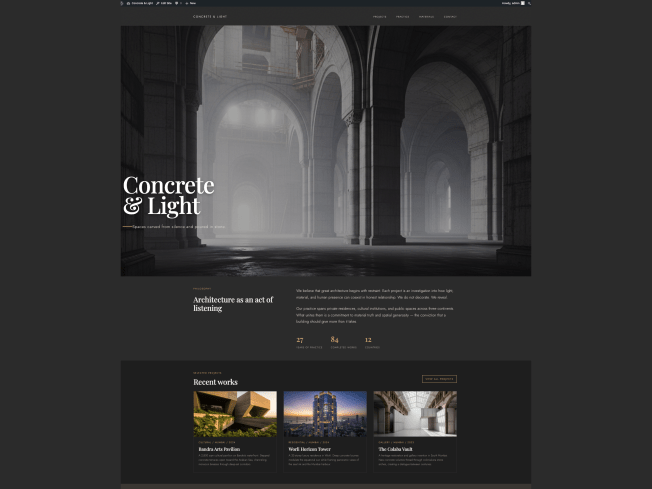
The workshop walks you through building Concrete & Light, a block theme for a fictional heritage architecture studio based in Mumbai. Rather than starting from theory, you start from a working site with real content — five pages and three project posts — and progressively shape the design through the Site Editor.

Three guided exercises take you from basics to custom templates:
Exercise 1: Styling the Header. You install fonts (Jost and Playfair Display), set up a semantic color palette, configure typography presets, and transform the default header into a dark, minimal navigation bar with uppercase text and an accent border. This is where you get comfortable with global styles and template parts.
Exercise 2: Footer and Global Elements. You build a four-column footer with studio branding, page links, social channels, and addresses. Then you style headings, links, and buttons across the entire site to ensure design consistency. By the end, you understand how global element styles cascade through your theme.
Exercise 3: Page Templates. This is where it gets interesting. You create a Landing Page template with a full-viewport hero image, a 40% overlay, and a dynamically pulled page title — no hardcoded text. Then you build a Category Projects template with a three-column query loop grid, giving you hands-on experience with archive templates and dynamic content.
You use the visual tools WordPress provides and see the results immediately. The Create Block Theme plugin is pre-installed so you can export your modifications as a proper theme at any point.
Getting started on your own
You have three options for setting up your site:
- A visual app, WordPress Studio can import the included blueprint and have your site ready in a couple of minutes.
- Using the command line, the Studio CLI will do the same thing with a single command.
- Or skip the install entirely, open the workshop site directly in WordPress Playground — it loads right in your browser with all the content and plugins already in place.
Instructions for installing WordPress Studio or using the Studio CLI for the workshop are also available.
Whichever route you choose, the blueprint automatically installs WordPress, activates the required plugins, imports all demo content and media, and configures the site settings.
Once your site is running, open the exercise instructions on GitHub and work through them at your own pace. The instructions include color references, specific block settings, and enough context that you should not get stuck even without a workshop facilitator in the room.
The full workshop bundle is on GitHub. Fork it, clone it, or just download the ZIP. And if you build something with it, we would love to hear about it.
If you have trouble or run into problems, email pauli@gutenbergtimes.com or ping me on WP Slack or create an issue or discussion on GitHub
Resources to learn more
- Slidedeck: Building a block theme from scratch
- Theme Handbook on WordPress.org
- Setup Instructions
- GitHub Repo with instructions for the workshop
- List of tutorials on theme.json on the WordPress developer blog
- Full site editing for theme developers by Carolina Nymark
Leave a Reply